

For most specialty trade subcontractors, QuickBooks Online Plus is the practical floor for real job costing, with Advanced or Desktop Enterprise worth the jump once you need native progress billing or heavier reporting. Whatever tier you land on, do three things this week: turn on Projects, build a contractor-specific chart of accounts, and set up a retainage receivable workaround before your next draw goes out. Add every subcontractor as a vendor tracked for 1099s from day one.
TL;DR:
- QuickBooks Online Plus is sufficient for most subcontractors' job costing, but Advanced or Desktop Enterprise become necessary for native progress billing or advanced reporting needs.
- Setting up projects, a contractor-specific chart of accounts, and a retainage receivable workaround are essential to maintain accurate job and financial data.
- Tracking retainage requires creating a separate receivable account and applying a negative rate to progress invoices, with monthly reconciliation for accuracy.
- Complete vendor profiles, including W-9, TIN, and insurance notes, are critical for accurate 1099 management and compliance from the first invoice.
- Regular review of field data, including crew hours and punch-in details, is vital to prevent stale job costs and improve report reliability.
Table of Contents
- Which QuickBooks Plan and Add-Ons Subcontractors Actually Need
- QuickBooks Setup Checklist for Subcontractors
- How to Track Retainage in QuickBooks (The Workaround That Actually Works)
- Add Subcontractors and Manage 1099s: Vendor Setup and Payments
- Progress Invoicing and AIA-Style Billing in QuickBooks
- Job Costing and Labor Burden: Reporting vs. Tax Filing
- Integrations and Field Workflows That Make QuickBooks Practical
- Common QuickBooks Mistakes Subs Make (and How to Fix Them)
- What Actually Moves the Needle for Subcontractors
- A Faster Path From Bid to Job-Cost Clean Books
- Sources
Which QuickBooks Plan and Add-Ons Subcontractors Actually Need
QuickBooks Online Plus gives you Projects, which is the feature that separates job costing software from generic bookkeeping. Without it, every job blends into one undifferentiated pile of income and expense, and you find out which jobs lost money only after they're closed. QuickBooks Online Plus is commonly the minimum for job costing, and for a $2 million electrical or drywall operation running six to ten jobs at once, that's usually enough.
Advanced earns its higher price when you need native progress and AIA style billing, batch invoice automation, or reporting deep enough to satisfy a bank covenant. Desktop Enterprise still makes sense for firms managing inventory heavy trades like plumbing or HVAC with serious parts stock.
Budget for these add-ons regardless of tier:
- QuickBooks Time to capture crew hours by job and cost code without a paper timesheet.
- QuickBooks Payroll to handle burdened labor costs correctly.
- A connector for certified payroll or prevailing wage reporting if you do public work.
QuickBooks Setup Checklist for Subcontractors
Skipping setup discipline is the single most common reason job reports lie to you. A certified ProAdvisor typically needs 3 to 6 hours to configure a contractor file correctly, and that time buys you months of clean data instead of a messy scramble at tax time.
- Build a contractor chart of accounts. Separate direct job costs, indirect costs, and general overhead. Create a distinct subcontractor COGS account and a separate retainage balance account.
- Turn on Projects and enforce a naming rule. Something like client-job-date keeps every invoice, bill, and timecard tagged to the correct job automatically.
- Enable classes or locations if you run multiple crews or work across regions, so you can slice reports by crew as well as by job.
- Connect bank and card feeds and build transaction rules so recurring vendors and material suppliers auto-categorize.
- Create full vendor records for every subcontractor: W-9 on file, TIN entered, 1099 tracking checkbox on, and a note field for certificate of insurance expiration dates.
Pro Tip: Set a calendar reminder to review vendor COI expiration dates every 30 days. A lapsed certificate discovered mid-project can hold up a draw or trigger a compliance flag from the general contractor.
How to Track Retainage in QuickBooks (The Workaround That Actually Works)
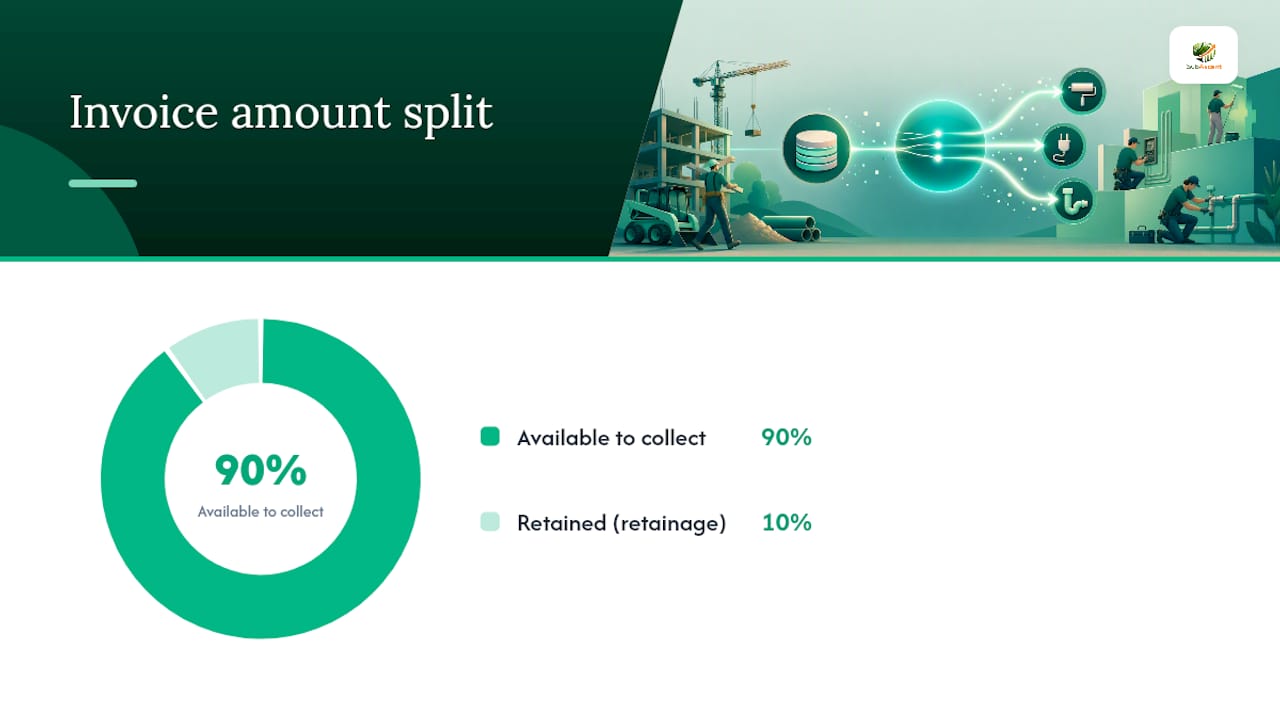
QuickBooks Online has no native retainage feature, and that gap catches a lot of subcontractors off guard. If you invoice the full contract value and let QuickBooks book the withheld 10% as regular income, your P&L overstates revenue and your accounts receivable shows money you can't actually collect yet.
The standard workaround uses five steps, and contractor bookkeepers rely on it precisely because it's not glamorous, just reliable:
- Create a Retainage Receivable other current asset account on your balance sheet.
- Build a negative rate product or service item tied to that account, usually set at negative 10%.
- Apply that line item to every progress invoice so retainage gets pulled off the top automatically.
- Create a separate release invoice when the retained amount comes due at project closeout.
- Reconcile the Retainage Receivable balance by job every month, not just at year end.
Mirror the same structure for Retainage Payable on the bills you owe your own subcontractors. The biggest error here is double counting: releasing retainage on the invoice side without also releasing it on the payable side leaves phantom balances sitting on your books for months.
Add Subcontractors and Manage 1099s: Vendor Setup and Payments
Every subcontractor needs a complete vendor profile before their first invoice gets entered, not after. That means:
- Legal business name matching their W-9, not a nickname or DBA.
- TIN or EIN entered and verified.
- Full mailing address for 1099 delivery.
- The "track payments for 1099" box checked.
- A note field logging current certificate of insurance status.
There's a meaningful difference between entering a subcontractor's bill and just recording their invoice as a generic expense. Use the bill, then pay bill workflow: enter the bill against the correct job, apply it to the matching cost code, then pay it. This keeps your job-cost reports accurate because the expense hits the project the moment it's billed, not whenever you happen to cut the check. Paying subcontractors outside this flow, straight from the register, is how job costs quietly disappear from reports.
Progress Invoicing and AIA-Style Billing in QuickBooks
Draw schedules are where a lot of subcontractor bookkeeping breaks down, mostly because the invoice template doesn't match the schedule of values the general contractor expects. Inside Projects, you can build a Schedule of Values as a QuickBooks estimate, then generate progress invoices against percentage complete for each line item.
- On Plus, you're building this manually with invoice templates and percentage tracking per line.
- On Advanced, native progress invoicing and batch billing tools cut the manual work meaningfully, which matters once you're running certified payroll or bonded jobs with strict draw requirements.
- If you stay on Plus, a light connector or a custom AIA-style template can replicate most of what Advanced automates, just with more manual review.
Reconcile your work-in-progress schedule against the income statement monthly. If the two don't match, retainage or a missed change order is almost always the culprit.
Job Costing and Labor Burden: Reporting vs. Tax Filing
Contractors run into trouble when they treat management reporting and tax filing as the same mapping exercise. They aren't.
For management reporting, classify subcontractor costs in COGS so job reports reflect true cost. For tax filing, those same payments typically map to Contract Labor on your tax return. Reconcile the two mappings before filing and keep a clear trail for your CPA.
That distinction, confirmed by contractor accounting guides, is why your internal job-profitability report and your tax return can legitimately show subcontractor costs differently without either one being wrong.
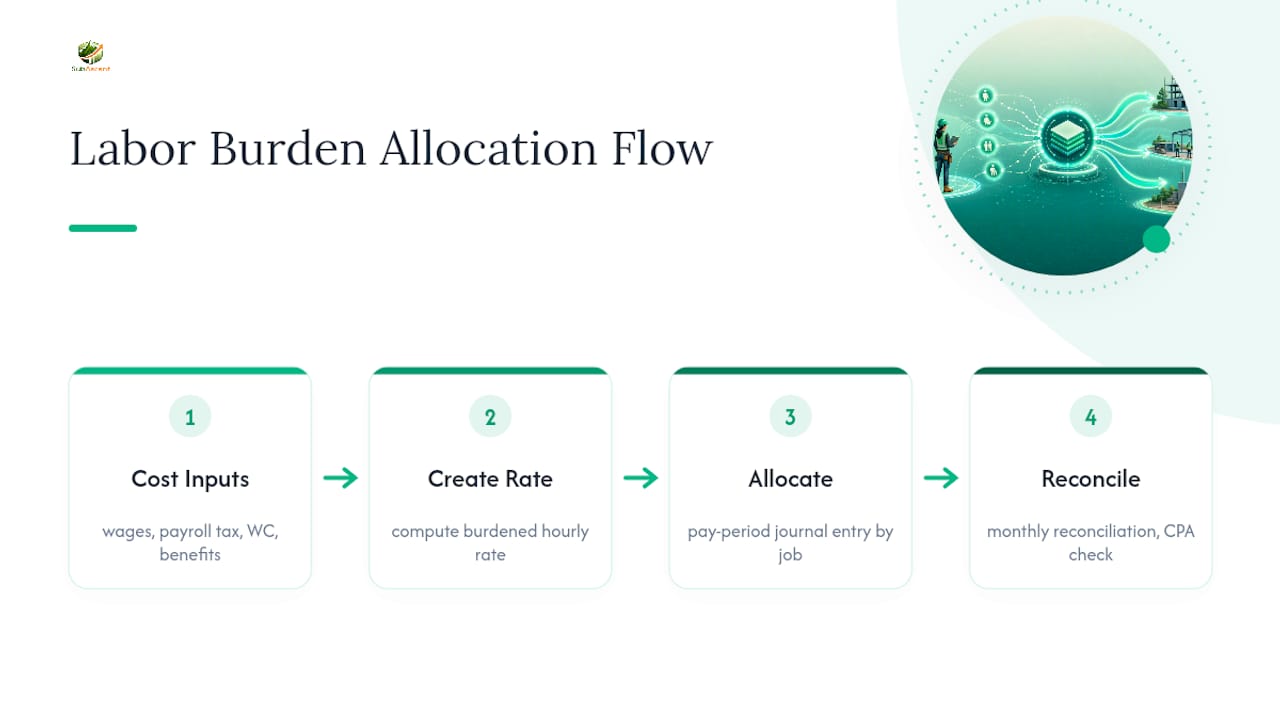
For labor burden, record hourly wage costs plus payroll taxes, workers' comp, and benefits as a burdened rate applied to the job, not just gross wages. A journal entry each pay period that allocates burden by job keeps your estimates and actuals comparable. Run this reconciliation monthly, and get your CPA to confirm the tax mapping before year end rather than after you've filed.
Integrations and Field Workflows That Make QuickBooks Practical
QuickBooks is only as accurate as the data that reaches it, and for trade subcontractors, most of that data starts in the field, not the office. Mobile timecards that sync to QuickBooks close the gap between what a crew actually worked and what gets billed to a job.
- Capture crew name, hours, job, and cost code on every timecard entry, not just total hours.
- Use estimating or takeoff tools that export clean numbers into an estimating sheet, or a connector that pushes actual costs straight into QuickBooks.
- Review bank feeds weekly, not monthly, and photograph receipts the day they're incurred.
Pro Tip: A crew that logs hours against the wrong cost code every week for a month can quietly wreck an otherwise profitable job's numbers. Spot-check job-cost reports weekly, not just at invoice time.
Common QuickBooks Mistakes Subs Make (and How to Fix Them)
The most damaging errors are quiet ones. Contractors who don't configure QuickBooks as a project-based system from day one end up with books that look fine until a job closes and the margin isn't there.
- Not using Projects consistently. Fix by making job-tagging mandatory at data entry, no exceptions.
- Mixing COGS and overhead. Fix by auditing your chart of accounts against actual job costs quarterly.
- Ignoring retainage. Fix with the five-step workaround and a monthly reconciliation habit.
- Missing W-9s or 1099 flags. Fix by refusing to pay a first invoice until the vendor file is complete.
- Skipping bank-feed review. Fix with a standing weekly 15-minute review block.
Bring in a ProAdvisor for the initial build and any retainage cleanup. Handle the monthly maintenance in-house once the structure is solid.
What Actually Moves the Needle for Subcontractors
Most of the advice out there treats QuickBooks setup like a one-time task you finish and forget. It isn't. The setup steps that matter most for job costing are the ones you repeat every single week, not the ones you configure once.
The firms that get real value out of QuickBooks are the ones that treat field data capture as seriously as the chart of accounts. A framing or masonry crew logging hours on paper and handing them in Friday afternoon guarantees your job costs are a week stale by the time you see them. Fix that first, before you worry about which report to customize.
Start this week: enable Projects, fix your vendor records, and pick one job to track with disciplined cost coding. By day 30, expect cleaner AR. By day 90, expect your job-profitability reports to actually predict which bids to chase again.
— Dave
A Faster Path From Bid to Job-Cost Clean Books
Getting QuickBooks configured correctly solves half the problem. The other half is everything that happens before a job even hits your books: tracking bid invitations, building estimates, and getting field data out of a crew's head and into a usable format.

Some software handles that front end. Bid tracking keeps due dates from slipping through the cracks, PDF takeoff tools speed up estimating, and mobile crew timecards capture hours by job and cost code the moment work happens, not three days later. Sync that data straight to QuickBooks and your job-cost reports stop lagging reality. The result is faster invoicing, cleaner job-cost data, and fewer end-of-month reconciliations spent chasing missing hours. If you're tired of QuickBooks only being as good as the data someone remembers to enter, visit Subascent to see a demo or start a free trial.
Sources
- QuickBooks for Construction Contractors: Compare 2026 Editions
- How to Track Retainage in QuickBooks Online
- 5 common mistakes contractors make using QuickBooks
- QuickBooks Setup for Contractors | Bookkeeping Champs