

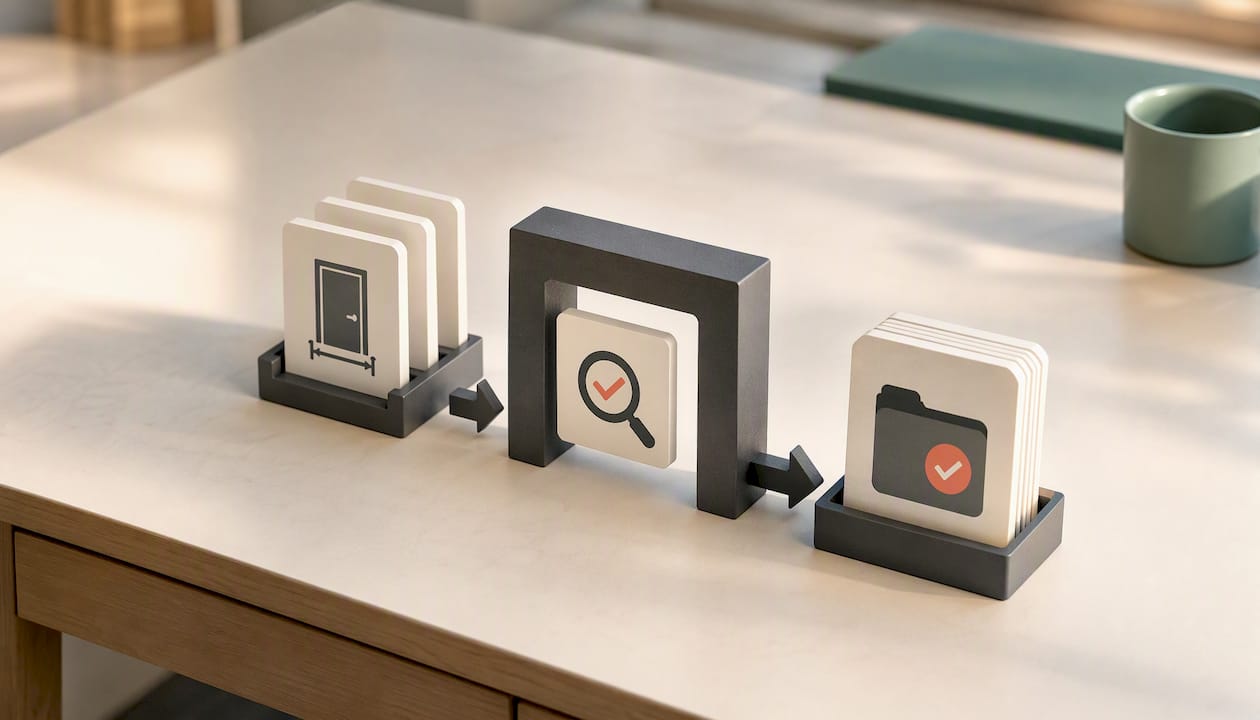
Calibrate the drawing first, either by entering the stated scale ratio (like 1/4" = 1') or clicking a known dimension and typing its real length. Turn on snapping, set your units to match your estimating workbook, and only then start measuring. Skip calibration and every distance, area, and count you pull is a guess dressed up as a number.
TL;DR:
- Always calibrate your drawing against a known dimension or scale ratio before measuring to ensure accuracy.
- Use snapping features and match units to your estimating workbook to minimize measurement errors.
- Avoid rescaling printed sheets with fit-to-page, as it distorts the scale and leads to incorrect measurements.
- Confirm the scale on each view or viewport, especially if multiple scales are present on the same sheet.
- Process measurement tools locally for bid-sensitive projects to maintain data security and accuracy.
Table of Contents
- How Do You Calibrate and Measure a PDF Drawing?
- Which Tool Fits Your Takeoff, Browser, Desktop, or Offline?
- What's the Right Way to Calibrate a Scale Ratio?
- Why Does Printing Break Your Scale (and How Do You Avoid It)?
- What Common Mistakes Wreck PDF Measurement Accuracy?
- What's a Practical Takeoff Workflow by Trade?
- What Habits Actually Save Time on Every Set of Plans?
- How Does Subascent's Takeoff Tool Fit Into This Process?
- Sources
How Do You Calibrate and Measure a PDF Drawing?
Here's the checklist. Run through it every time you open a new plan set, no exceptions.
- Open the drawing in a measuring-capable app and confirm your unit settings before you touch anything else.
- Check the title block for a stated scale. If it lists one (1/4" = 1', 1:100, whatever), enter that ratio directly into the tool's calibration setting.
- No stated scale? Calibrate manually. Click two points across a dimension you know for certain, like a door opening or a structural grid bay, and type in the real measurement.
- Turn on snapping. Endpoint and intersection snapping keep your clicks locked to actual geometry instead of wherever your cursor happens to land.
- Measure distances, areas, and perimeters, and set decimal or fractional precision to match whatever your estimating sheet expects.
- Export the totals into your estimate and save an annotated copy of the PDF with your measurement marks visible, as a record of what you actually measured.
That last step matters more than people give it credit for. When a GC questions a quantity six weeks later, an annotated PDF with your calibration point marked is worth more than your memory of how you got the number.
Pro Tip: Calibrate against the largest reliable dimension on the sheet, not the smallest. A 4 foot door opening measured off by a sixteenth of an inch throws your scale off far less than a 6 inch detail measured with the same error.
Which Tool Fits Your Takeoff, Browser, Desktop, or Offline?
Not every job needs the same tool. Matching the tool to the task saves time and prevents the wrong kind of shortcut.
- Browser-based quick checks are fine for verifying a single dimension or settling an argument about a wall length. They're fast, but snapping tends to be weak or absent, and export options are usually limited to a screenshot.
- Desktop editors like Acrobat, PDFelement, and PDF Expert give you real calibration tools, snapping, polygon area measurement, and annotation you can hand off to a PM or attach to a bid. PDF Expert's Calibrate tool lets you set scale by known dimension or ratio and then measure with unit selection, which covers most of what a takeoff actually requires.
- Local or offline processing matters more than most estimators think about until a bid gets leaked. Running measurement tools locally instead of uploading a bid-sensitive set to some cloud service is a real safeguard, not just a technical preference.
- Dedicated takeoff or estimating add-ons earn their place when you're summing dozens of line items, since they total automatically and export straight to CSV or Excel instead of forcing you to retype numbers.
For a single wall check, a browser tool is plenty. For a bid you're staking real money on, use something built for the job.
What's the Right Way to Calibrate a Scale Ratio?
Two calibration methods cover almost every situation you'll run into, and a third one is worth using carefully.
- Scale ratio entry. If the sheet states its scale, type it straight into the tool. A 1/4" = 1' architectural scale converts to an architectural scale factor commonly used in CAD; metric drawings use the denominator of the ratio as the scale factor, for example, 1:50 corresponds to a factor of 50. These conversion factors drive how the software translates your on-screen clicks into real-world feet and inches, so getting the factor right up front prevents every measurement downstream from being wrong by the same multiple.
- Reference-dimension calibration. No stated scale, or you don't trust the one that's printed? Click two points across something you can verify (a parking stall, a stud bay, a known door width) and enter that real length. This method is generally more reliable than trusting a scale bar on a scanned or re-copied drawing.
- Auto-detect features. Some newer tools can guess scale automatically. Convenient, but treat it as a starting point, not a final answer. Always confirm auto-detected scale against one physical dimension before you trust it for a bid.
A scale factor of 48 versus 96 isn't a rounding difference. Mix them up and every linear foot you report is off by double, which is the kind of error that turns a profitable job into a loss before you've poured a single yard.
Why Does Printing Break Your Scale (and How Do You Avoid It)?
Rescaling a page and calibrating a measurement are two completely different operations, and confusing them causes more bad takeoffs than any other single mistake.
- Page rescaling changes the physical size of the sheet. Percentage scaling in a print dialog, say printing at 50% or 200%, resizes the output, and scale bars printed on the original sheet no longer match reality once that happens.
- "Fit to page" is the usual culprit. It looks harmless, but it silently stretches or shrinks the drawing to match your paper size, which corrupts any scale reference on the sheet.
- The fix is a test print, not a guess. Print a known dimension at 1:1 on your target paper, measure the printed result with a physical ruler, and confirm it matches. If it doesn't, use the custom scale field in your print dialog instead of fit-to-page.
- Resizing pages is fine when you're just standardizing paper sizes for a binder or a plan room. It's not a substitute for calibration, and it should never be used to "fix" a drawing that looks off scale.
Pro Tip: Keep a small ruler in your takeoff kit and physically measure test prints against the stated scale before you trust a plotted sheet on a big bid.
What Common Mistakes Wreck PDF Measurement Accuracy?
Three or four habits cause most of the bad numbers estimators send out the door.
- Skipping verification. Measure one or two known dimensions before running a bulk takeoff. If they're off, everything after them is off too.
- Clicking without snapping. Endpoint and intersection snapping keep long runs accurate; manual clicks without snapping compound error fast on runs over 50 or 100 feet.
- Assuming one scale for the whole sheet. Detail views and viewports frequently use a different scale than the main plan, and each one needs its own calibration check.
- Trusting rasterized scans. A scanned drawing has no vector precision, so lines can blur or shift slightly under magnification. Vector PDFs measure cleanly; scans need extra caution and a tighter tolerance on your verification checks.
- Mixing units or precision settings. Confirm whether your tool and your estimating workbook are both using architectural fractions or decimal feet before you export anything.
None of these mistakes show up until the job's underway and the numbers don't add up on-site.
What's a Practical Takeoff Workflow by Trade?
Calibration and accuracy checks matter less in the abstract than they do applied to an actual bid. Here's how that plays out trade by trade.
- Confirm the file first. Check the version, the scale callout, and the title block date before you measure anything. A superseded sheet ruins a takeoff faster than a bad calibration does.
- Work in a consistent order: linear runs first (conduit, piping, framing), then areas (flooring, painting, concrete slabs), then counts (fixtures, penetrations, outlets).
- Flag anything unclear for an RFI or a site measure instead of guessing. A flagged item costs you a phone call; a wrong guess costs you a change order fight.
- Export straight into your estimating workbook once the totals look right, rather than retyping numbers from a notepad.
Quick trade notes: measure concrete slab area edge to edge, not centerline to centerline. Trace conduit runs continuously rather than measuring straight-line distance between boxes, since actual routing adds footage. For painting, use net wall area (gross minus openings) rather than gross square footage, which overstates material need.
Pro Tip: Keep a running list of "assumed" dimensions, like standard door widths used for quick checks, so you can go back and verify them before the bid goes out, not after.
What Habits Actually Save Time on Every Set of Plans?
Every plan set that lands on my desk gets a version-control note: who sent it, what date, and whether the scale checked out against a known dimension. That habit alone has saved more rework than any tool upgrade I've made. When a sheet has no stated scale, I pick one physical reference I trust, write it down in my takeoff notes, and calibrate against that every time, not a different reference for each viewport. Bid-sensitive PDFs get processed locally when the tool allows it, and I keep the annotated PDF as my audit trail. If a number gets questioned later, I can show exactly how I got it instead of arguing from memory.
— Dave
How Does Subascent's Takeoff Tool Fit Into This Process?
Some PDF takeoff add-ons automate calibration, keep snapping on by default, sum linear runs and areas as you measure, and export totals straight to CSV or Excel instead of making you retype numbers into your estimating workbook.

It's built for the estimators and office admins actually running these takeoffs, not a general-purpose PDF viewer bolted onto construction terminology. Some software plugs into bid and estimating workflows so that calibrated measurements can turn into line items without separate export steps, and version-control notes live in one place instead of a notebook next to the keyboard. If you want to see how it handles a real plan set, start a trial and run your next takeoff through it at Subascent.