

Mobile timecards let a foreman record crew hours by job and cost code right from a phone, and that single change fixes two of the most expensive problems in trade contracting: slow, error-prone payroll prep and job costing that arrives too late to matter. The payoff is real time saved and records that hold up if the Department of Labor ever asks how those hours were tracked.
TL;DR:
- Offline support with local punch queuing and automatic sync is essential for accurate tracking in signal-deprived areas like basements or rural sites.
- Geofence and GPS verification, backed by selfies or PINs, ensure personnel authenticity and precise clock-in locations.
- Real-time integration must carry through detailed data such as hours by cost code, employee ID, job number, and date to avoid manual reconciliation.
- Pilot testing with a single crew for two to four weeks helps reveal friction points and confirms payroll reconciliation time significantly drops.
- Successful rollouts require small initial projects, quick foreman training on job-cost flow, and ongoing geofence and code adjustments based on real-world use.
Table of Contents
- What a Mobile Timecard Must Do for Specialty Trade Subs
- How Do You Choose a Mobile Timecard Solution?
- Setting Up Mobile Timecards: A Rollout Checklist
- QuickBooks and Payroll Integration: What Actually Has to Transfer
- Foreman Best Practices That Prevent Field Pushback
- What We've Seen Work in the Field
- How CrewTrack Fits Into Your Mobile Timecard Rollout
- Where to Go Deeper on Mobile Timecard Setup
- Sources
What a Mobile Timecard Must Do for Specialty Trade Subs
A timecard app that was built for retail shift workers will not survive a basement rough-in with no signal or a steel crew spread across three buildings. Trade work has its own demands, and a tool that ignores them creates more office cleanup than it saves.
Here's what actually matters on a job site:
- Offline mode with automatic sync. Crews punch in and out inside concrete basements, behind steel studs, and on rural sites with no bars. The app has to queue those punches locally and push them the moment a signal returns, without dropping or duplicating entries. Not all time-tracking apps are built for construction, and offline handling is usually the first thing that separates a real trade tool from a generic one.
- Geofence and GPS verification, often backed by a selfie or PIN, so the office knows who actually clocked in and where.
- Cost-code tagging at the moment of entry, tied to CSI MasterFormat divisions or your own trade-specific codes.
- Foreman approval with role-based permissions, so hours get a human check before they hit payroll.
- Photo and note attachments that link hours to field conditions, useful when a change order or a dispute comes up later.
- Certified payroll export formats for prevailing-wage jobs, so DOL documentation doesn't require a rebuild from scratch.
Skip any one of these and you're back to reconstructing hours from memory at 4:45 on a Friday.
How Do You Choose a Mobile Timecard Solution?
Feature lists all sound similar in a sales deck. The differences show up when you actually try to move a punch from the field into a paycheck.
Start with five non-negotiables:
- Offline support that queues punches and syncs cleanly, not one that just fails silently in a dead zone.
- Configurable geofences, since a downtown high-rise needs a tighter radius than a spread-out linear job.
- Cost-code fields built into the entry screen, not bolted on as an afterthought in a report.
- An approval workflow that routes from foreman to office before hours are final.
- QuickBooks or payroll sync that preserves job and cost-code detail, not just a daily total.
The single best way to test any of this is to ask for a live demo where someone creates a real time entry, complete with cost code, and traces it all the way into QuickBooks or your payroll system. A demo like that reveals more about integration quality than any feature checklist a vendor hands you.
While you're on that call, ask about certified payroll formatting, which devices and OS versions are actually supported in the field, how exceptions like missed punches get flagged, and what the support SLA looks like when payroll is due in six hours and something breaks.
Pro Tip: Before you sign anything, run the tool on one project with one crew for two to four weeks in parallel with your current process. That window is long enough to surface friction points without betting a whole payroll cycle on an unproven system.
Setting Up Mobile Timecards: A Rollout Checklist
Rolling this out badly is how good software gets blamed for bad implementation. A tight checklist prevents that.
- Map your payroll import fields first. Before the first export ever runs, match employee ID, pay type, job code, cost code, hours, and overtime to the corresponding fields in the new system. This is the single most skipped step, and it's the one that causes the most rework later.
- Configure geofences and preload job and cost-code lists. Size the geofence to the job type, since a tight urban lot and a spread-out linear project need different radii, then test offline sync on-site before day one.
- Run a 20 to 30 minute foreman training session and hand out a laminated quick-start card. Foremen adopt faster when the training shows them how their field hours flow into job-cost reports and billing, not just how to tap buttons.
- Pilot in parallel for a few days to two weeks. Track adoption rate, the number of exceptions flagged, and how long payroll reconciliation actually takes compared to your old process.
- Set exception flags and load certified payroll templates if you do prevailing-wage work.
Paper time logs cost a typical 30-person crew somewhere between $30,000 and $50,000 a year in leakage, rework, and supervisor hours spent chasing down handwritten sheets. That number alone is usually enough to justify the two weeks it takes to run a proper pilot.
QuickBooks and Payroll Integration: What Actually Has to Transfer
This is where a lot of "integrated" tools quietly fail. The sync runs, a total shows up in QuickBooks, and it looks fine until someone tries to pull a real job-cost report and finds only daily totals with no cost-code breakdown.
The fields that have to carry through cleanly, every time, are:
- Employee ID
- Job or project number
- Cost code
- Hours worked
- Date
- Pay rate or cost rate
Hours by cost code matter more than daily totals. A daily total tells you a guy worked eight hours. Hours by cost code tell you he spent five on rough-in and three on service calls, which is the only version of that data your estimators can actually use to price the next bid. Make sure the integration pushes hours broken out by cost code, not just a lump sum, or your job-cost reports will need manual reconciliation every single week.
Test the whole chain before you trust it: punch a field entry with a cost code attached, run the sync or export, then check that the exact cost-code detail shows up in your job-cost report. If it doesn't survive that trip, the integration is broken, no matter what the sales page says.
Some setups need middleware to bridge a timecard app and QuickBooks properly, especially with older or heavily customized QuickBooks files. Native integrations are simpler when they exist, but middleware is the right call when a native path doesn't preserve cost-code detail. Done right, continuous, detailed data flow turns QuickBooks into a real-time labor cost tool instead of a monthly surprise. Certified payroll exports for prevailing-wage jobs should pull from this same clean data, not a separate manual process.
Foreman Best Practices That Prevent Field Pushback
The best software in the world fails if foremen fight it. A few field-tested habits fix most of the resistance before it starts.
- Keep cost-code lists short and specific to the day's actual work. A drywall crew doesn't need forty codes on screen when three or four cover 90% of the day.
- Use batch or crew clock-in where the workflow supports it, and require individual entries where accountability matters more than speed.
- Have a script ready for selfie or PIN verification. A foreman who can explain in one sentence why it's there ("this is what proves your hours if anyone ever asks") gets far less pushback than one who just says "corporate wants it."
- Use a tablet kiosk instead of phones for crews without smartphones or for large multilingual crews where individual phone entry slows everyone down. Tablet kiosks work better in exactly those two situations.
- Schedule a two-week check-in to adjust geofence size, trim cost codes, and loosen or tighten approval windows based on real friction.
Pro Tip: Preload trade-specific cost-code buckets before rollout, not after. Masonry and concrete crews need different default buckets, like formwork, rebar, and finishing, than electrical crews running rough-in and trim. Getting this right on day one is what makes foremen actually track hours correctly instead of guessing at codes.
What We've Seen Work in the Field
Every failed rollout we've looked at has the same root cause: someone flipped the switch for the whole company on day one and hoped for the best. Every successful one starts small and treats the first two weeks as data collection, not a formality.
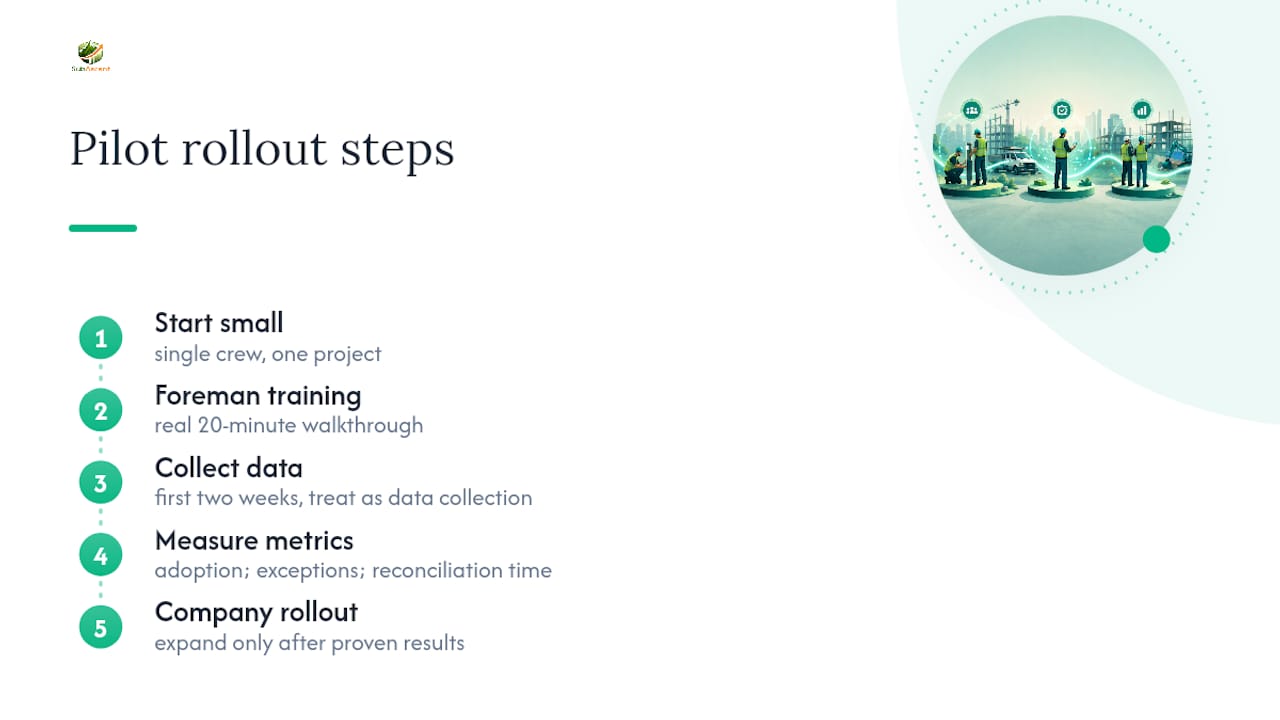
The pattern that works is a single crew, one live project, and a foreman who gets a real 20-minute walkthrough instead of a link to a help article. Adoption climbs fast once a foreman sees their punches turn into a job-cost number the office actually uses. Exceptions drop within the first week once geofences get resized to match the actual site. Payroll reconciliation time, which is the metric that convinces skeptical owners, usually falls the most, because the office stops chasing down handwritten sheets and starts trusting the export.
Start small, measure the three things that matter, adoption, exceptions, and reconciliation time, and only then roll it out company-wide.
— Dave
How CrewTrack Fits Into Your Mobile Timecard Rollout
Subascent built CrewTrack specifically for crews in the trades this article is written for, not as a generic time clock with a construction label slapped on it. The mobile app handles cost-code tagging at the point of entry, syncs to QuickBooks with job and cost-code detail intact, and generates certified payroll exports when prevailing-wage jobs demand them.
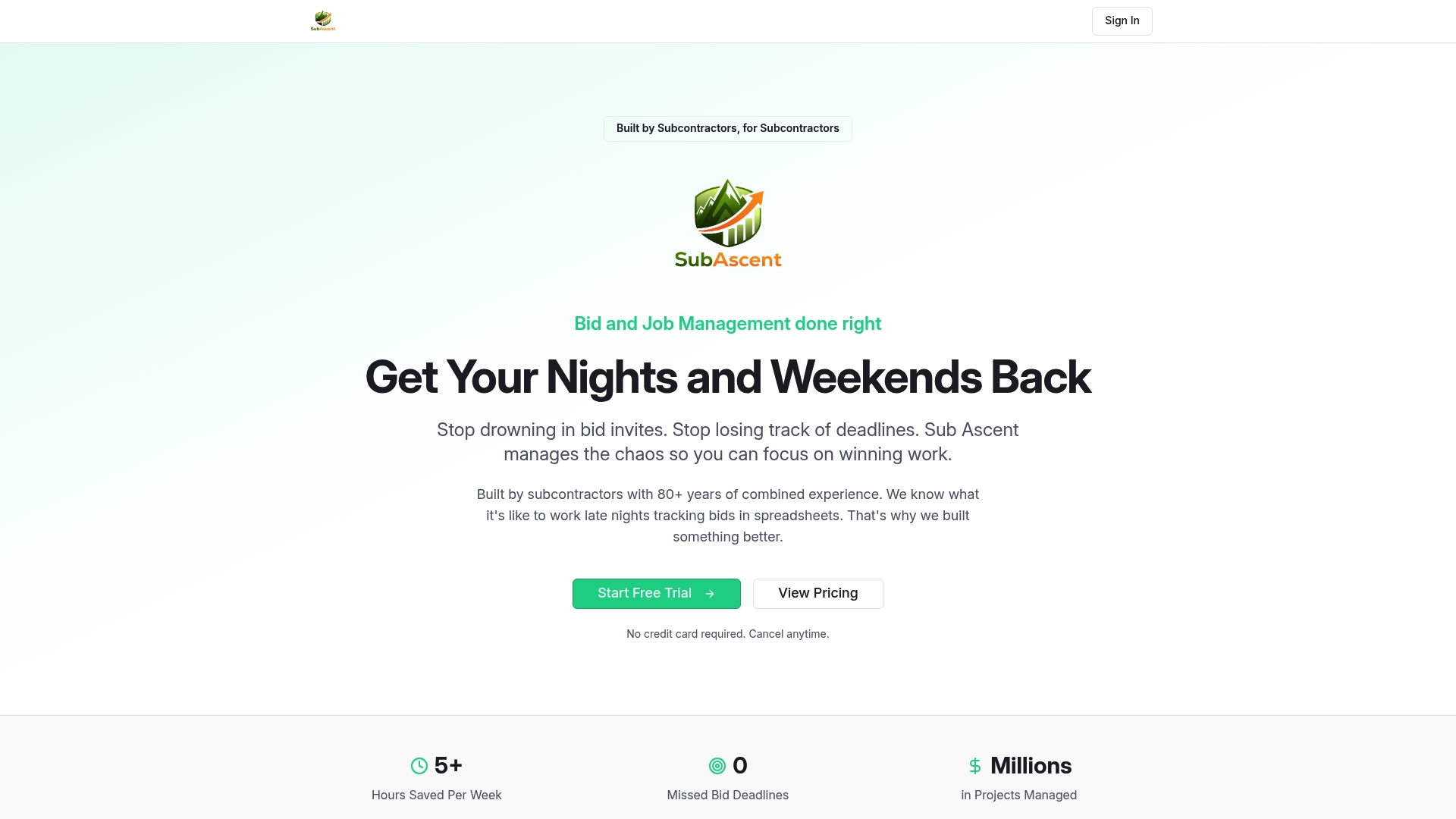
The interface is built around what a foreman actually needs on a phone screen in the field: fast entry, a short trade-relevant code list, and an approval step before anything hits the office. It's sized for businesses running one to fifty employees, which means you're not paying for enterprise features built for general contractors running hundred-person crews across a dozen sites. If your current process still runs on paper or a spreadsheet, start a pilot on one project with the CrewTrack landing page and see how the first two weeks of real data compare to what you're doing now.
Where to Go Deeper on Mobile Timecard Setup
A few resources go further into the mechanics covered here if you're building out a rollout plan or writing training materials for your foremen.
The Complete Construction Time Tracking Implementation Guide walks through geofence configuration and payroll field mapping in more detail than fits in a single article. For the QuickBooks side specifically, Integrating QuickBooks for Project-Based Teams and Job Costing covers what real-time labor visibility looks like once the sync is running cleanly.
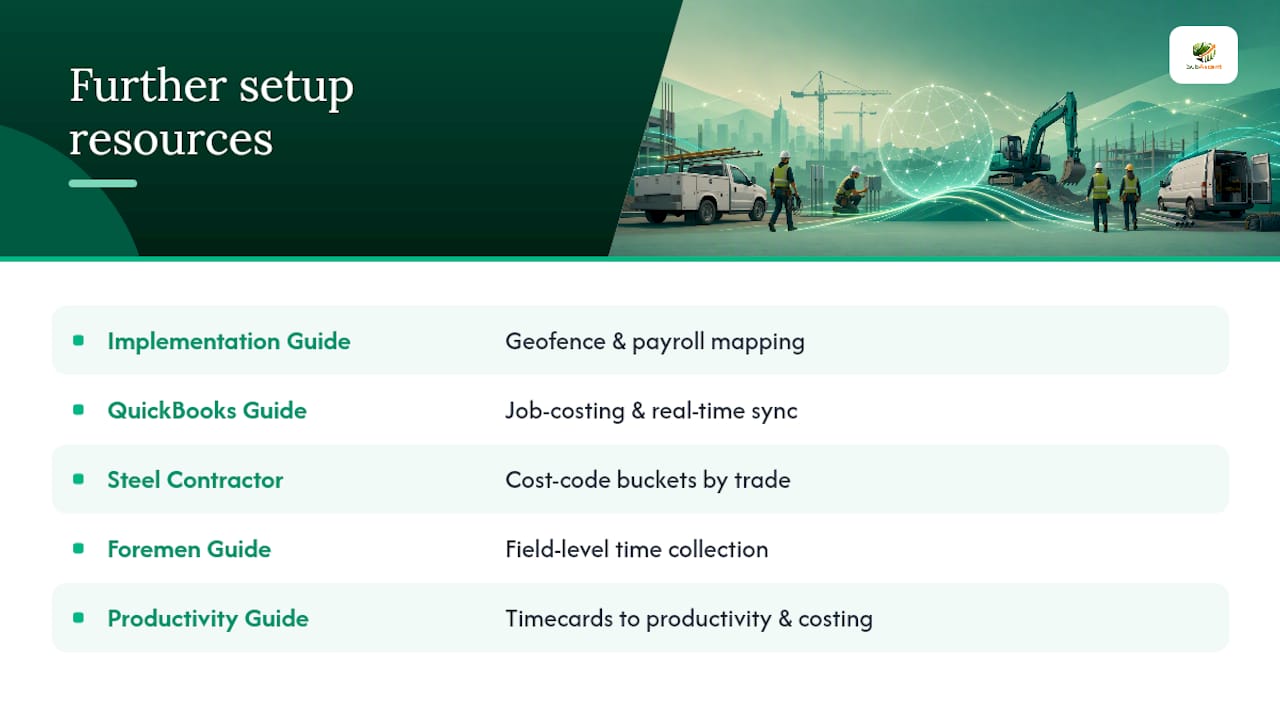
If you want trade-specific examples, Steel Contractor Timecard Collection Methods breaks down cost-code buckets by trade, and How Foremen Track Crew Hours on the Job Site is a practical field-level companion to the setup checklist above. For the bigger picture on how this data feeds job costing over time, Crew Productivity Tracking on Job Sites connects timecard data to productivity analysis, and Buildberry's guide to construction task management is worth a look if you're tying field hours into broader project controls.
Sources
- The Complete Construction Time Tracking Implementation Guide | Crewtrace
- Mobile Time Tracking for Field Labor: Choosing the Right Tool | EZBilling Blog
- Why mobile time clocks beat paper logs on construction sites
- Integrating QuickBooks for Project-Based Teams and Job Costing